
How to Type in Chinese on Any Device: Mac, Windows, iPhone & Android
Want to know how to type in Chinese? The good news: you don't need to buy anything, download anything, or memorize thousands of characters first. Every modern computer and phone already includes a free Chinese pinyin keyboard — it just isn't turned on by default. This guide walks you through enabling it on macOS, Windows, iPhone/iPad, and Android, step by step, in about two minutes per device.
How Typing in Chinese Actually Works
Chinese has no alphabet, so you can't type characters directly. Instead, you use an input method editor (IME) — software that converts what you type into Chinese characters. The most popular system by far is pinyin input, used by the overwhelming majority of the more than one billion people who type Chinese every day.
Here's the flow:
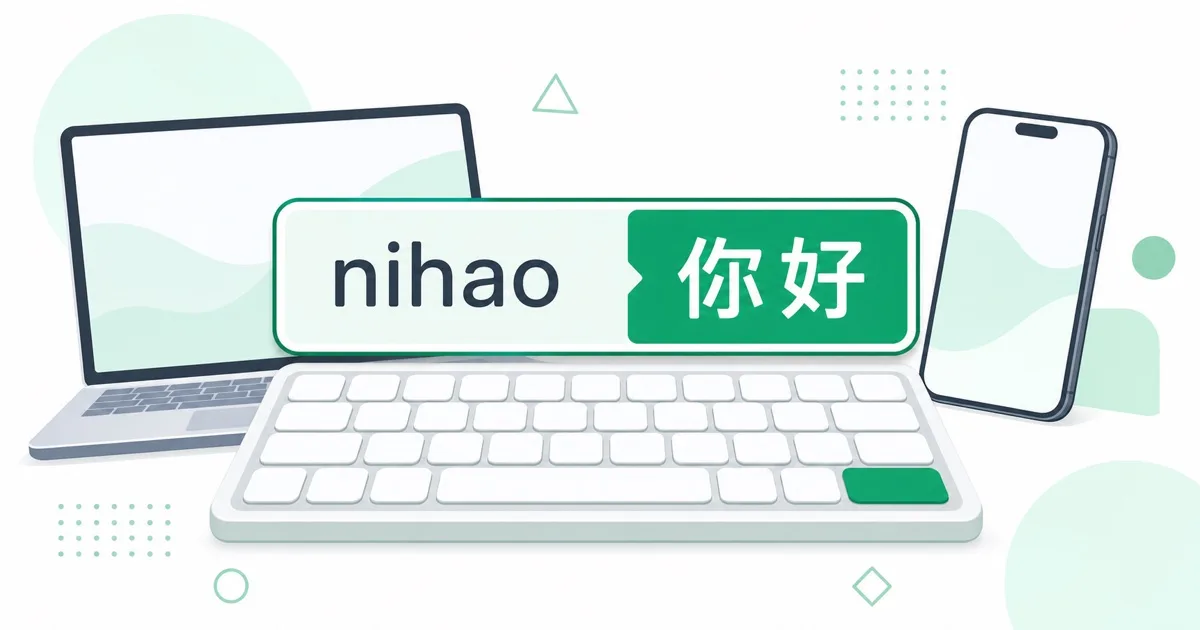
- Type the pinyin (the romanized spelling) of what you want to say — for example,
nihao - A candidate bar appears showing matching characters: 你好, 拟好, 尼豪...
- Pick the right one with a number key, the space bar, or a tap — and 你好 appears in your text
Two things surprise beginners:
- You don't type tones. Even though 你好 is pronounced nǐ hǎo, you just type
nihao. The IME figures out the rest from context. - You type whole words and phrases, not single characters. Typing
woshixueshenggives you 我是学生 ("I am a student") in one go. Word-level typing is both faster and more accurate, because context helps the IME choose the correct characters.
If you've practiced on TypingMandarin without a Chinese keyboard, you've already used our built-in pinyin mode — it works exactly like a real IME, with a candidate bar and number-key selection. Setting up your system's Chinese keyboard is the natural next step: it works in every app, not just in your practice sessions.
Never typed Chinese before?
Our HSK 1 course teaches you real vocabulary through typing practice — and its built-in pinyin mode means you can start before setting up anything.
Try the HSK 1 Course →How to Type Chinese on Mac (macOS)
macOS ships with an excellent pinyin IME. To enable it:
- Open System Settings → Keyboard
- Under Text Input, click Edit… next to Input Sources
- Click the + button, choose Chinese, Simplified
- Select Pinyin – Simplified and click Add
To switch between English and Chinese, press Ctrl + Space (or click the input menu icon in the menu bar — it shows "拼" when Chinese is active). On newer Macs, the fn/globe key also cycles input sources.
Now open any app and type nihao — a candidate window appears under your cursor. Press 1 or the space bar to confirm 你好.
macOS offers several Chinese input sources (Stroke, Handwriting, Trackpad Handwriting). As a learner you only need Pinyin – Simplified. Fewer input sources also makes switching less confusing. See Apple's official guide for advanced options.
How to Type Chinese on Windows 10 / 11
Windows includes Microsoft Pinyin, a full-featured IME:
- Open Settings → Time & Language → Language & Region
- Click Add a language, search for Chinese (Simplified)
- Select Chinese (Simplified, China) and click Install — Microsoft Pinyin comes with it automatically
- You can untick "Set as my Windows display language" — you're adding a keyboard, not changing your system language
To switch input languages, press Win + Space (hold Win and tap Space to cycle). Within Chinese mode, the Shift key toggles between Chinese and English output — handy for mixing languages in one message.
Type nihao in Notepad: candidates appear in a horizontal bar, numbered 1–9. Press the number or space to select. Microsoft's Input Method Editor documentation covers additional settings like fuzzy pinyin and traditional character output.
How to Type Chinese on iPhone and iPad
- Go to Settings → General → Keyboard → Keyboards
- Tap Add New Keyboard…
- Choose Chinese (Simplified), then Pinyin – QWERTY
- Tap Done
While typing, press and hold the globe key to pick the Chinese keyboard (or tap it to cycle). Type nihao and candidates appear above the keyboard — tap 你好 to insert it.
The iOS pinyin keyboard is remarkably good at whole-sentence prediction: type a long pinyin string like mingtianjian and it usually produces 明天见 ("see you tomorrow") on the first try. Apple's keyboard guide has details on reordering and removing keyboards.
How to Type Chinese on Android
Android phones vary by manufacturer, but Gboard (Google's keyboard, pre-installed on most devices) is the simplest route:
- Open any app that shows the keyboard, then tap the gear icon on Gboard (or go to Settings → System → Languages & input → On-screen keyboard → Gboard)
- Tap Languages → Add keyboard
- Search for Chinese (Simplified) and select Pinyin
- Tap Done
Switch layouts with the globe key or by long-pressing the space bar. Google's Gboard language guide covers the same steps with screenshots.
In China, third-party IMEs like Sogou (搜狗输入法) are popular for their larger slang dictionaries and cloud predictions. As a learner you don't need them — the built-in Microsoft, Apple, and Google pinyin keyboards are excellent, better for privacy, and one less thing to configure. You can always explore alternatives later.
Keyboard enabled? Put it to work.
The fastest way to make your new Chinese keyboard feel natural is a few minutes of daily typing practice with instant feedback.
Start Practicing Free →Test Your Setup in 10 Seconds
On every platform, the check is the same. Switch to the Chinese keyboard and type:
- Type:
nihao - Expect: 你好 (nǐ hǎo) — "hello" — as the first candidate
- Then try:
xiexie→ 谢谢 (xiè xie) — "thank you" - And a sentence:
wohenhao→ 我很好 (wǒ hěn hǎo) — "I'm fine"
If 你好 shows up, you're done — you can now type Chinese in every app on that device.
Switching Shortcuts Cheat Sheet
| Device | Switch input language | Notes |
|---|---|---|
| Mac | Ctrl + Space (or fn/globe key) | "拼" icon in menu bar when active |
| Windows | Win + Space | Shift toggles CN/EN inside Chinese mode |
| iPhone / iPad | Globe key (tap or hold) | Hold shows a keyboard picker |
| Android (Gboard) | Globe key or long-press space | Layout varies by manufacturer |
Muscle-memory tip: practice the switch shortcut a few times right after setup. Fumbling the language toggle mid-sentence is the single most common frustration for new Chinese typists.
Common Problems (and Quick Fixes)
The candidate bar shows the wrong characters. Type longer chunks. Single syllables like shi match dozens of characters (是, 十, 时, 事…), but woshi almost always resolves to 我是. Context is the IME's superpower — use it.
I switched keyboards and now everything I type is Chinese. You're in Chinese mode — press the same shortcut (Ctrl + Space / Win + Space / globe) to switch back. On Windows, also check the Shift toggle state.
I don't know the pinyin for the character I want. That's a learning gap, not a setup problem — and it's exactly what typing practice fixes. Our pinyin basics guide covers the system from scratch, and the interactive pinyin chart lets you hear every syllable. If you already have the characters but not the pinyin, the Chinese to pinyin converter spells it out for you.
Typing feels slow. Normal at first. Speed comes from recognizing candidates quickly, which is a trainable skill — see our guide on how to learn pinyin typing fast for concrete drills.
From Setup to Fluency: Practice Beats Configuration
Enabling the keyboard is the easy part. The skill that actually matters is the loop your brain runs every time you type: recall the pinyin → type it → recognize the correct character among the candidates. That loop is active recall of pronunciation and character recognition at once, which is why typing practice is such an efficient way to study Mandarin.
A simple plan for your first two weeks:
- Today: enable the Chinese keyboard on your main device (you just did) and pass the
nihaotest - Days 1–7: type 10–15 HSK 1 words a day — greetings, numbers, pronouns
- Days 8–14: move to full sentences; let word-level typing (
woshixuesheng→ 我是学生) become your default habit
Ready to Type Real Chinese?
Our HSK 1 course turns your new Chinese keyboard into a learning tool: hear native audio, type the pinyin, pick the characters, and build vocabulary through muscle memory. If your keyboard isn't set up yet, the built-in pinyin mode kicks in automatically — you can start either way.
Start the Course — Free
References
- macOS: Type Chinese with Pinyin — Apple Support
- Windows: Input Method Editors — Microsoft Support
- Add or change keyboards on iPhone — Apple Support
- Add a language on Gboard — Google Help
- Pinyin input method — Wikipedia
Keyboard ready? Put it to work — practice HSK 1 vocabulary through typing on TypingMandarin, or warm up with the interactive pinyin chart first.

